Lesson
Send Personalized Reports to Demonstrate Brand Value
Support Customer Goals with Personalized Messaging
Brands that offer solutions rather than just products can differentiate themselves from competitors. When customers recognize that a brand consistently prioritizes their needs and challenges, they are more likely to develop loyalty. By utilizing Braze functionality, you can deliver personalized messaging that tracks user progress and showcases how your brand supports them in achieving their goals. This approach leads to higher engagement rates and improved conversion rates.
Industry Examples
Personalized progress reports are flexible and can be used in many different industries, including:
- Ecommerce: Send personalized progress reports to your seller community, highlighting their sale achievements for the week.
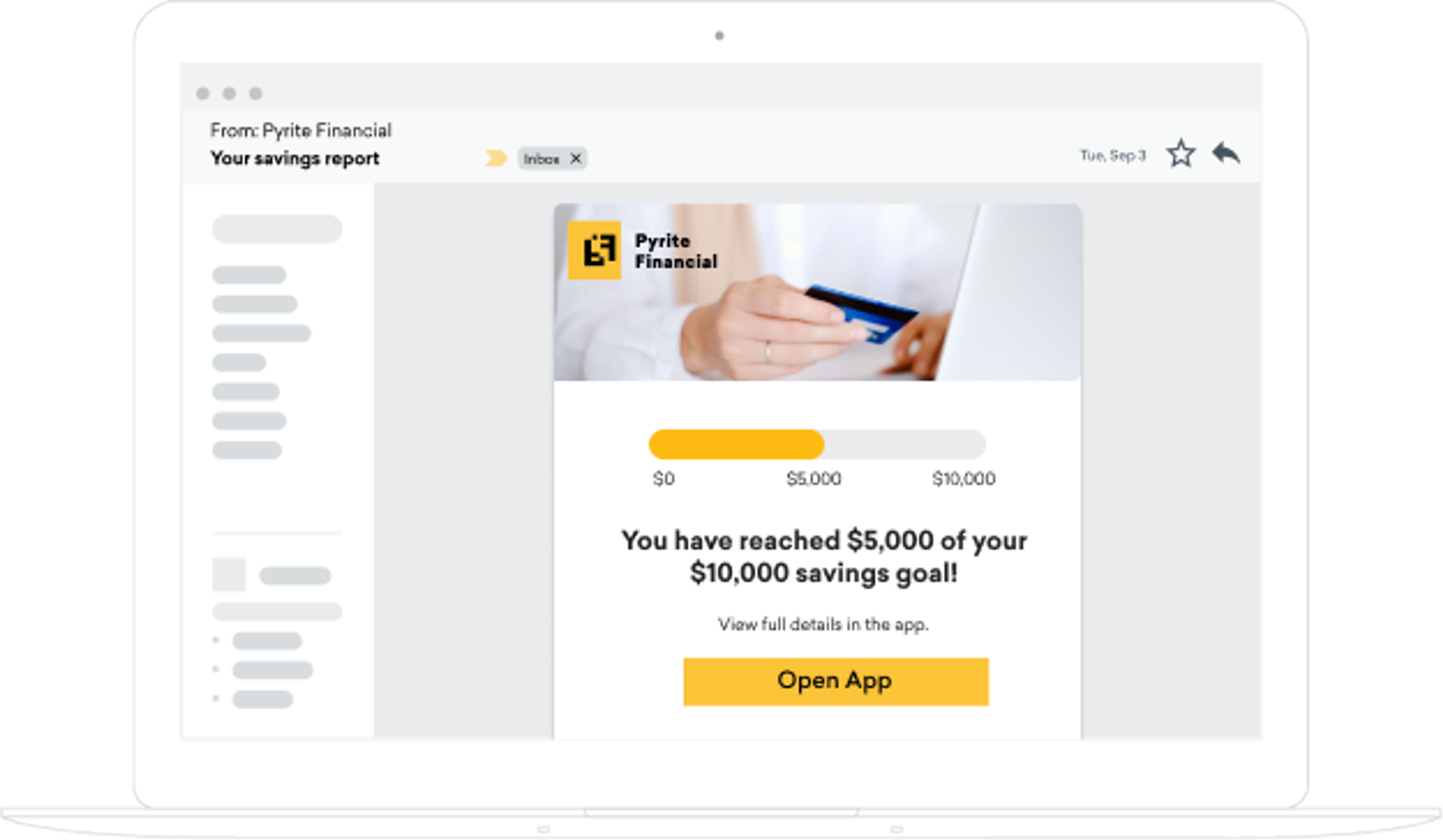
- Finance: Utilize personalized progress reports to update users on their savings progress throughout the quarter.
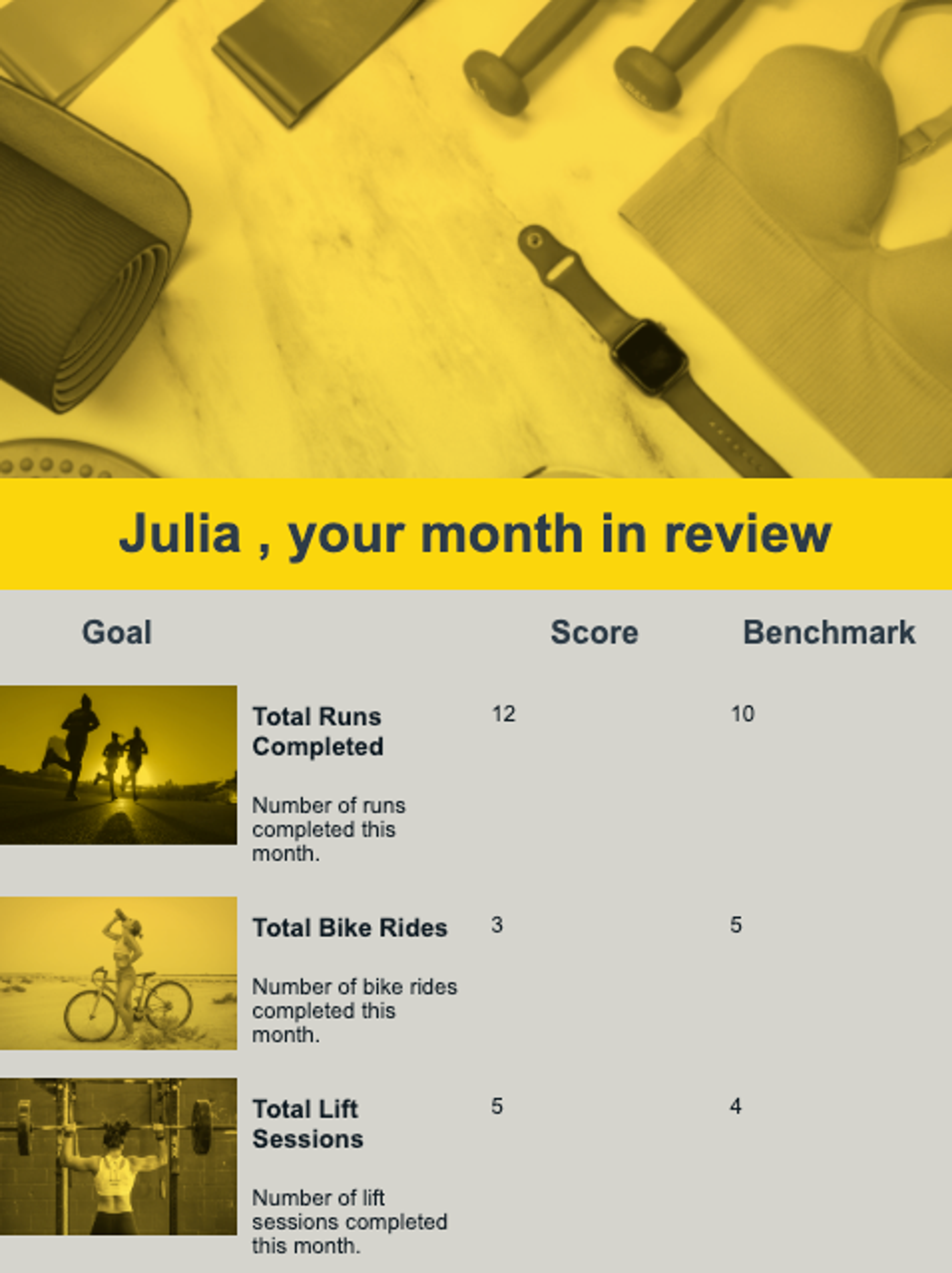
- Fitness: Provide personalized progress reports that break down a user’s exercise activity over the past month.
Use Case: Send Personalized Fitness Reports using Email and Canvas
Fitness brands are excellent candidates for leveraging progress reports to motivate users in achieving their goals and nudging them toward desired actions. Research shows that increased and repeated user engagement benefits business health by deepening the relationship between an app and its user base, ultimately creating opportunities to grow a paid subscriber base.
In this use case, an example fitness brand, Steppington, will be creating an email report that tracks three key user activities:
- Total Runs
- Total Workouts
- Total Lift Sessions
Using Canvas, Steppington will track the number of times a user performs a specific activity, and then reset the score to zero for the following month.
This example uses out-of-the-box features and doesn’t require developer resources.
How It’s Done
To create and send personalized progress reports to your users, you must complete 3 key steps:
- Create a Canvas to Calculate the Custom Attribute Tally for Each User: First, create and launch a Canvas one month in advance to gather the necessary data for the progress report.
- Create a Canvas to Reset the Custom Attribute Tally to Zero: Next, launch a Canvas that resets the tally to zero for the following month. This Canvas will be sent out simultaneously with your progress report, one month after the initial Canvas.
- Create a Message Template: Develop an email template that compiles users' workout statistics and sends them a report.
To successfully execute this use case, you will need the following:
Data Requirements
- A default attribute (i.e.
first_name): This progress report will address the user by name. To accomplish this, you will need the user's first name from their profile, allowing you to use the liquid tag to populate it in the email. - A set of custom attributes: To implement this use case, you will need two custom attributes for each activity listed in your campaign. For instance, if you are tracking the total number of runs completed by users over the past month, you would require a custom attribute like
monthly_runsand another attribute to log each individual activity completion, such asrun_completed. - A custom event (i.e.
complete_workout): You will need a custom event point for each custom attribute listed in your campaign. For instance, if you are trackingmonthly_runsin your email, you will require arun_completedevent. Additionally, you will need a conversion event, which can be any custom event of your choice.
Necessary Integrations
Add any integrations necessary for the use case, for example:
- Braze SDK
In the following sections, learn how to send a recurring monthly progress report using email and Canvas.
This use case uses the User Update component in Canvas. When a user reaches this step in a Canvas journey, it allows you to create, update, or remove attributes from a user profile. To learn more about the User Update component in Braze Documentation and in this Quick Tips.
Step 1: Create a Canvas to Calculate the Custom Attribute Tally For Each User
To calculate the number of times an activity from the report was performed per user, you will need to use the User Update step in Canvas. In the following video and accompanying written instructions, you will learn how to create a User Update Canvas that adds up an activity count.
Step 2: Create a Canvas to Calculate the Custom Attribute Tally to Zero
Next, you must create one additional Canvas that will reset the activity count to 0 for the following month. In the following video and accompanying written instructions, you will learn how to create a user update Canvas that resets an activity count.
Step 3: Create a Message Template
Lastly, create a personalized progress report template using the Braze campaign feature. This report should align with your company branding and include sections for all relevant progress updates you wish to share with your users. Ensure you have identified the specific progress data to include before creating your report.
Additional Resources
Learn more about Personalization Using Liquid Tags in the Braze documentation.